
Caps Lock key
Explanation of the Caps Lock key: function, behavior, history, differences from shift/shift-lock, practical uses, accessibility and configuration across keyboards and operating systems.
Overview
The Caps Lock key is a modifier key on many computer and typewriter keyboards that causes letter keys to produce uppercase characters by default. When Caps Lock is active, typing the letter a yields "A" rather than "a". Typical desktop keyboards place it on the left side, often above the Shift key and below the Tab key, but floor layouts and compact designs sometimes move or omit it entirely.
Image gallery
5 Images

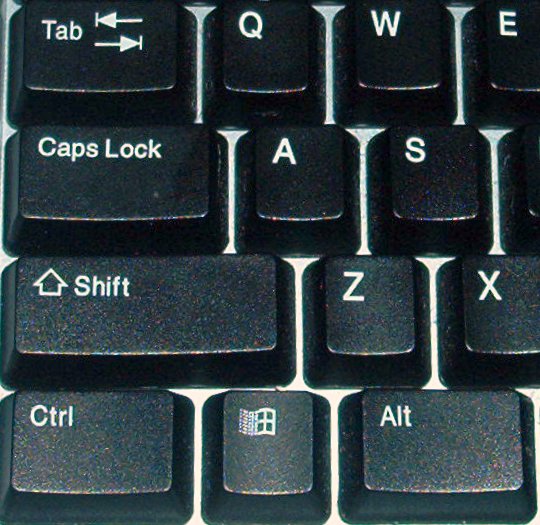


How it works and indicators
Caps Lock toggles a persistent state: pressing it turns capitalization on until it is pressed again. Many keyboards include a small physical LED to show the state, and modern operating systems commonly present an on-screen indicator when the key is changed. A physical or visual indicator helps users know whether subsequent text will be uppercase. Some systems also emit a brief notification or accessibility alert when Caps Lock changes status; on-screen keyboards replicate this behavior as well.
Caps Lock versus Shift and Shift Lock
The Caps Lock function is distinct from the momentary Shift key. Shift is held down to produce single uppercase letters or to access the upper symbols on keys; Caps Lock instead locks letters into uppercase until toggled off. Older typewriters and some mechanical keyboards implemented a shift lock that behaved like Caps Lock for letters and also locked the alternative, upper symbols on keys that have two markings. On such keyboards a key labeled with the digit 1 might produce the symbol above it, for example an !, without holding a modifier. Standard Caps Lock usually does not affect number-row symbols.
History and placement
Caps Lock evolved from mechanical typewriter conventions where typists needed to produce series of capital letters without continuously holding a shift lever. As keyboards transformed with electronics and computer input, Caps Lock became a separate toggle key. Manufacturers experimented with placement and presence: some compact laptops or educational projects removed the key to save space or reduce accidental activation. For instance, a well-known educational hardware initiative made design choices that left out a physical Caps Lock key on some models to simplify the layout and avoid confusion for new users; however, on-screen solutions often replace the missing toggle.
Common uses, conventions and etiquette
Caps Lock is useful when many consecutive uppercase letters are required, such as for acronyms, headings, serial codes, or certain types of data entry. In informal online writing, using all uppercase is commonly interpreted as shouting and is considered poor netiquette; many style guides advise reserving all-caps for short emphatic items rather than long passages. Experienced typists often prefer using the Shift key for occasional capitals and rely on Caps Lock only when a longer run of capitals is needed. A useful trick on many systems is that holding Shift while Caps Lock is active temporarily produces lowercase letters, reversing the lock for the duration of the key press.
Customization, accessibility and platform differences
Modern operating systems and keyboard utilities allow remapping or disabling the Caps Lock key to prevent accidental use or to assign it a more useful function such as Control, Escape, or another modifier. Accessibility settings may generate audible alerts or change cursor behavior when Caps Lock changes, helping users with visual impairments. Behavior can vary by platform: some desktops provide a persistent on-screen indicator, others flash a brief notification, and some compact devices omit a dedicated key but expose Caps Lock through virtual keyboards. On certain systems, pressing Caps Lock will trigger a light or an on-screen message; in other contexts a small LED near the keyboard or in the status bar indicates the state, while some mechanical keyboards offer configurable lighting tied to the lock state.
Practical tips and notable facts
- If you find yourself accidentally hitting Caps Lock, consider remapping it via your OS or keyboard software to a less disruptive function.
- When filling forms that are case-sensitive (password fields, some identifiers), verify Caps Lock is off unless an uppercase sequence is required.
- Some programs and games treat Caps Lock as an input toggle for modes or chat; awareness of the key's state avoids unintended typing of uppercase text.
- For convenience and troubleshooting, many keyboard manuals and help pages document the Caps Lock indicator behavior on their devices or operating systems such as Windows.
Further reading and manufacturer guidance on keyboard layouts, remapping tools and accessibility notes can be found in product documentation and platform help centers. For information on educational keyboard designs and projects that altered traditional key arrangements, see resources related to initiatives like One Laptop Per Child. For historical context about mechanical predecessors such as typewriters and ergonomic discussions regarding key placement, consult specialized histories and ergonomic studies. Manufacturers and keyboard enthusiasts also compare Caps Lock behavior with keys that carry two symbols or functions (see notes on keys with dual symbols and numeric row examples like 1 producing !). Online help pages often include visual cues or on-screen toggles similar to the small indicator lights found on many keyboards (LED status) and brief system messages or banners that appear when the key is toggled (notification).
Related articles
Author
AlegsaOnline.com Caps Lock key Leandro Alegsa
URL: https://en.alegsaonline.com/art/16793
Sources
- c2.com : "Remap Caps Lock"
- discussions.apple.com : "CAPS LOCK Behavior on 13" MacBook: Apple Support Communities"
- olpcnews.com : "Will OLPC Have a CAPS LOCK Key?"