
Partition editor — software for creating and managing disk partitions
Overview of partition editors: purpose, common operations, partition table types, command-line and graphical tools, uses, and safety practices for managing storage partitions.
A partition editor is a computer program used to view, create, modify and remove partitions on a storage device. Partitions divide the usable space of a disk, solid-state drive, USB flash drive or other medium into distinct regions so operating systems and data can be separated or organized. For an introduction to the general concept of such utilities see partition editor and for background on the hardware they act upon see storage device.
Image gallery
4 Images


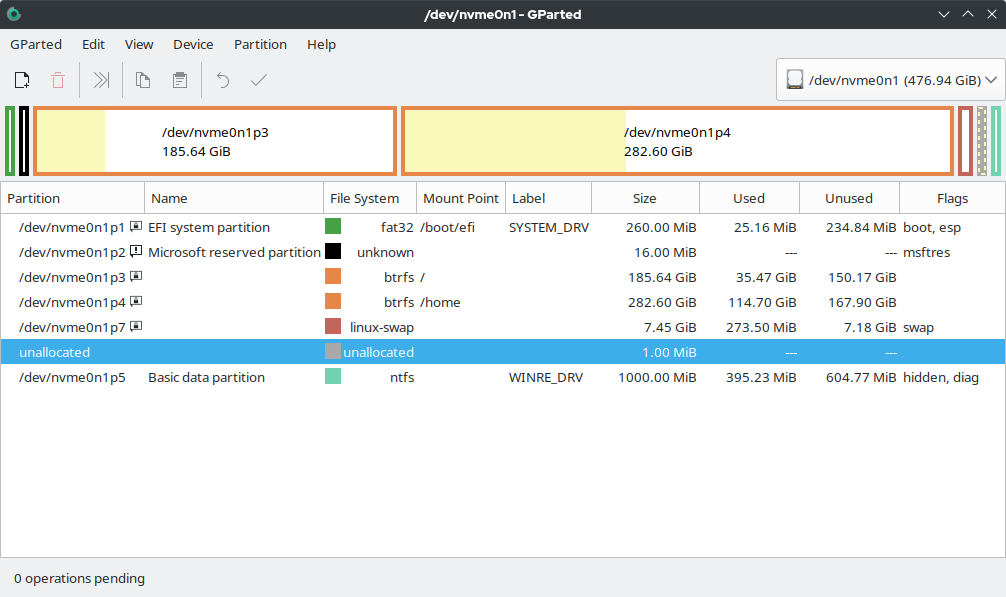
What a partition is and how it is described
A partition is a defined portion of a device’s addressable space. The layout is kept in a partition table stored on the disk, and two widely used table formats are MBR (Master Boot Record) and GPT (GUID Partition Table). MBR is an older scheme with limits on disk size and on the number of primary partitions, while GPT is newer and supports much larger disks and a greater number of partitions. Partitions may be primary, extended and logical under older MBR schemes, or simply described by entries under GPT. For typical magnetic hard drives see hard disk and for removable media examples see USB flash drive.
Common operations and characteristics
Partition editors support a core set of operations that allow flexible management of storage space. Typical capabilities include:
- Create: make a new partition and add an entry to the partition table.
- Delete: remove a partition entry (data may be lost unless recovered).
- Resize/Move: change partition boundaries to expand or shrink volumes.
- Format: write a filesystem to a partition (NTFS, ext4, FAT variants, etc.).
- Convert: change table type or partition attributes (for example MBR to GPT under supported conditions).
- Recover/Repair: attempt to restore damaged table entries or lost partitions.
Tools and user interfaces
Partition editors are available as command-line utilities and graphical applications. Command-line tools give precise control and scripting options; common examples include utilities bundled with operating systems such as Windows' diskpart, and Unix-like tools such as fdisk, cfdisk and parted. Graphical managers provide visual maps of partitions and make routine tasks more accessible; notable graphical programs include Windows Disk Management and Linux utilities such as GParted or KDE Partition Manager.
Uses and practical examples
People use partition editors for many reasons: installing multiple operating systems (dual-boot or multi-boot setups), separating system files from user data, creating dedicated recovery or swap partitions, preparing removable media, or organizing storage for virtual machines and containers. Administrators may also combine partitions with volume managers (LVM) or encryption systems to provide flexible logical volumes and secure storage. Proper partitioning can aid performance and simplify backups when planned thoughtfully.
Safety, best practices and notable considerations
Because partition operations alter disk metadata and can overwrite data, it is important to back up important information before making changes and to unmount or take disks offline when possible. Be aware of table-type limits (for example some older schemes limit disk size and primary partition count) and firmware boot requirements: some systems boot differently depending on MBR or GPT and BIOS vs UEFI. Where available, prefer tools that verify actions before applying them and keep an up-to-date recovery plan in case of power loss or hardware faults. For more detailed reference about command-line partition utilities and graphical alternatives, consult the linked resources above.
For authoritative guides and step-by-step tutorials, users can consult documentation specific to their operating system and chosen tool; the links provided earlier point to general starting points for deeper reading.
Related articles
Author
AlegsaOnline.com Partition editor — software for creating and managing disk partitions Leandro Alegsa
URL: https://en.alegsaonline.com/art/74844