
Graphical User Interfaces and Console (Command-Line) Interfaces
Overview of graphical user interfaces (GUIs) and console/command-line interfaces (CLIs): definitions, components, history, typical uses, advantages and how modern systems combine both.
Overview
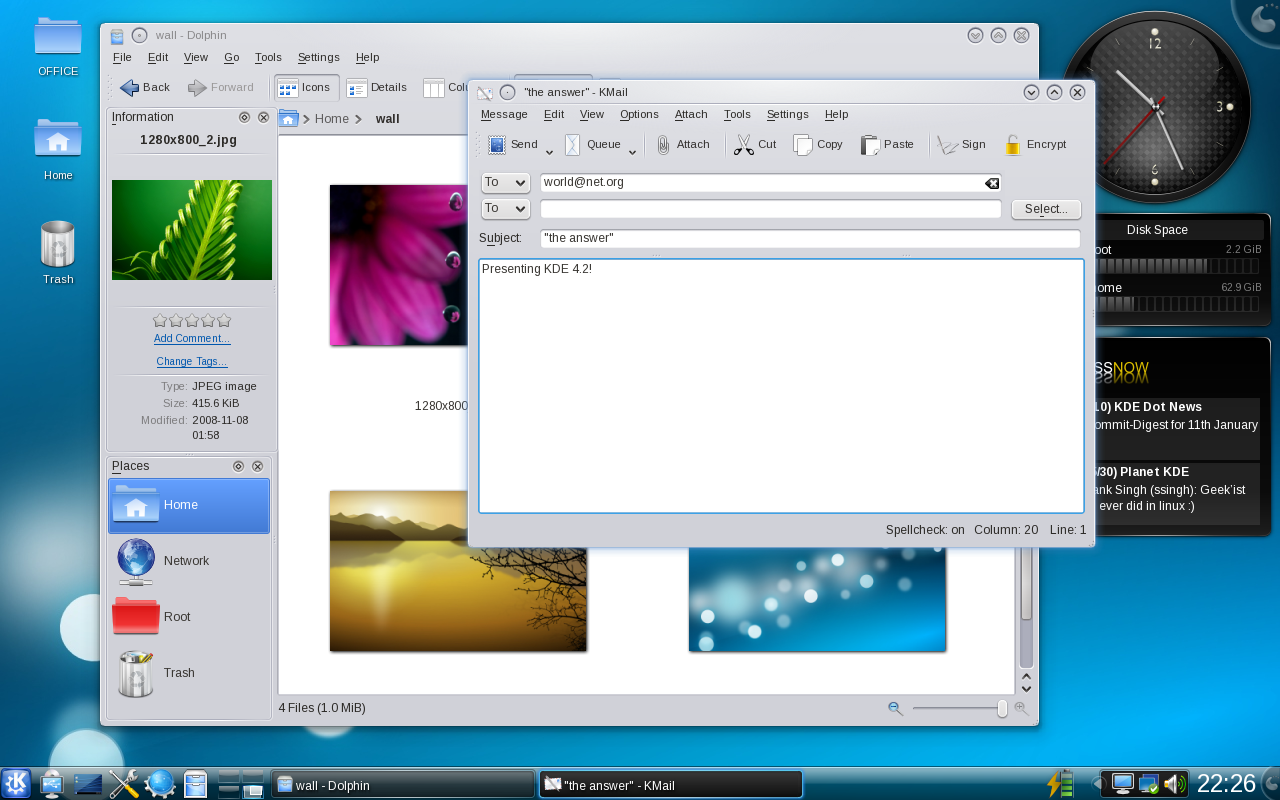
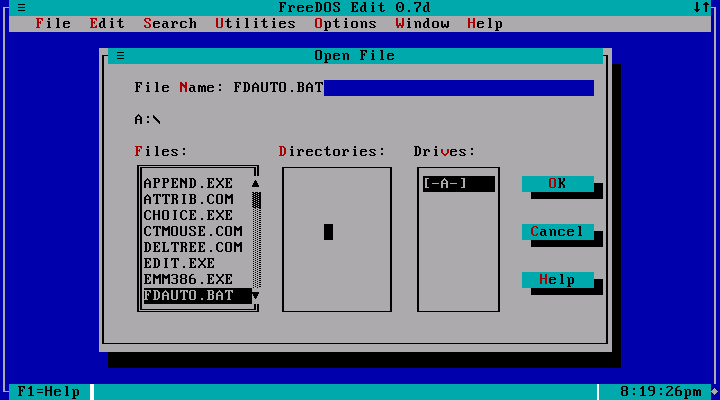
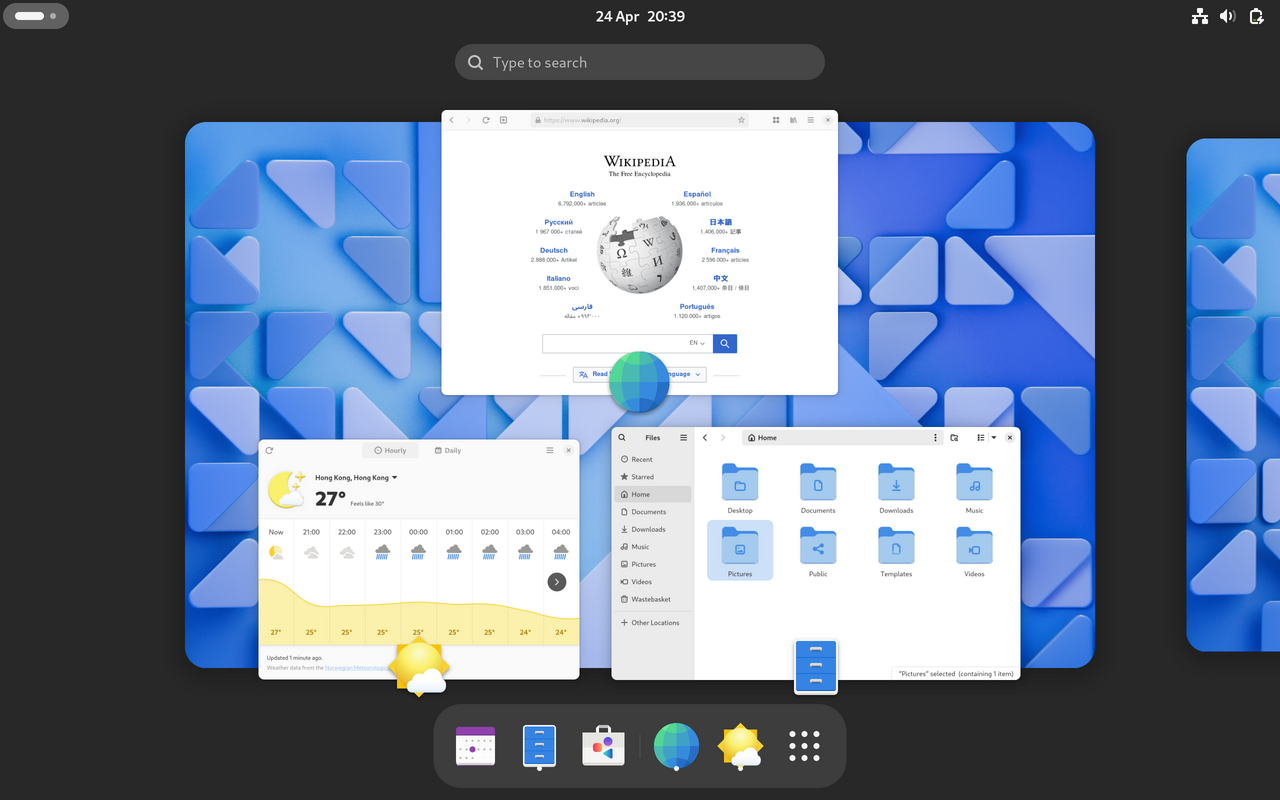
Computer systems present two principal interaction styles: the graphical user interface (GUI) and the console or command-line interface (CLI). A GUI offers visual elements such as windows, icons, menus and pointers that users manipulate with devices like a mouse or touchpad, while a CLI accepts typed text commands entered from a keyboard. Both approaches enable users to instruct a computer, run programs and view results, and most modern operating systems include facilities for both styles.

Image gallery
10 Images




Parts and characteristics
GUIs are composed of visible widgets—buttons, menus, dialog boxes, toolbars and windows—that give immediate visual feedback when users interact. They rely on a graphical display and pointing devices; many GUIs also support touch, gestures and keyboard shortcuts. CLIs run inside a terminal or console and use a text-based prompt where commands and arguments are typed. A CLI environment is usually provided by a shell program that interprets user input, executes commands and returns text output. Terminal emulators can run within a graphical session and provide a console-like experience.

History and development
The two interaction paradigms developed along different paths. Early computers were operated by typed commands and printed output; command-line work remained dominant on mainframes and early personal computers. Parallel research and development produced graphical environments that used windows and icons to make systems more approachable. In the 1970s and 1980s, graphical interfaces moved from research laboratories into widely used desktop systems, while CLI tools continued to evolve in parallel for system administration, scripting and programming tasks. Today both traditions coexist: graphical desktops are common for general-purpose use, and command lines remain essential in many technical and server contexts.

Uses, strengths and examples
Each interface has strengths suited to different tasks. GUIs excel at discoverability, visual organization and direct manipulation—useful for document editing, browsing the web, graphics and casual computing. CLIs excel at precision, repeatability and automation: typed commands can be combined into scripts to perform complex or repetitive work, operate remotely over low-bandwidth connections, and access powerful text-processing tools. Typical CLI utilities include file listing, copying and searching commands; typical GUI features include file managers, windowed applications and system settings panels.
- GUI advantage: immediate visual feedback and easier learning for new users.
- CLI advantage: scripting, batch processing and fine-grained control.
- Practical example: printing a document is often one or two clicks in a GUI, while in a CLI it may be invoked by a print command or chained in a script for many files.
Common systems and modern practice
Most mainstream operating systems provide both interfaces. Desktop systems offer graphical shells as the primary environment while also providing terminals for command-line use. Server and embedded systems may expose only a console or a remote command line for administration. Examples of widely used platforms that support both approaches include Microsoft Windows, macOS and many Linux-based distributions. The underlying concept of a machine or device is often linked in documentation; see general information about computers for broader context.
Distinctions and notable points
Terminology can be confusing: the word "console" may mean a physical terminal, a virtual terminal window, or a developer console inside a web browser. Similarly, a "shell" is the program that interprets commands in a CLI, while a "terminal emulator" provides the text interface within a GUI. Graphical and text interfaces can interoperate: GUIs commonly launch command-line utilities in the background, and terminal emulators allow CLI users to display images or graphical dialogs when required. For devices and peripherals, direct interaction words such as keyboard and mouse are often referenced when explaining input methods and accessibility features.

Understanding both GUIs and CLIs helps users choose the right tool for a task: GUIs for everyday productivity and approachable workflows, CLIs for automation, scripting and technical troubleshooting. Learning the basic concepts of each—how windows and widgets map to actions, and how commands, arguments and pipes compose in a shell—provides a flexible foundation for effective computer use.
Related articles
Author
AlegsaOnline.com Graphical User Interfaces and Console (Command-Line) Interfaces Leandro Alegsa
URL: https://en.alegsaonline.com/art/40350