
F1 key (function key)
The F1 key is a standard keyboard function key most often used to open help for an application. Its behavior varies by operating system and hardware and can be remapped or act as a multimedia key.
The F1 key is one of the function keys found on most computer keyboards. It is typically labeled "F1" and sits in the top row among other function keys. As a physical key on a keyboard, it has a conventional role but its exact effect depends on the operating system, the active program, and any hardware-specific modifiers.
Image gallery
3 Images
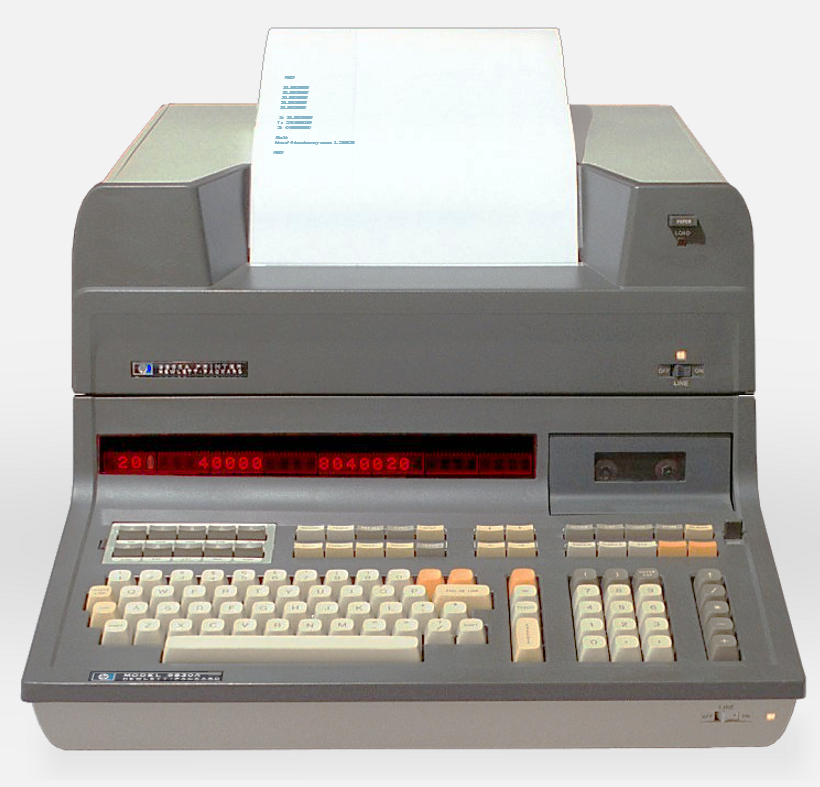

Overview
By long convention on many desktop and laptop systems, pressing F1 opens contextual help or a help viewer for the currently active application. This makes F1 a common shortcut for users seeking documentation or assistance. In graphical environments and many productivity programs the action is standardized so that users can rely on F1 for help across different software.
Typical functions and examples
- Help: In Windows applications and many cross-platform programs F1 opens the program's help system or a browser-based help page (help pages).
- Firmware and boot: On some systems F1 must be pressed to acknowledge firmware messages or to enter setup; its behavior here is vendor-specific.
- Multimedia and special keys: On many modern laptops F1 is combined with a secondary function—such as muting audio, adjusting brightness, or toggling wireless—and may require holding an Fn modifier key or toggling an Fn lock to access the standard F1 behavior.
- Custom bindings: Software such as development environments, games, and accessibility tools often let users remap F1 to other commands.
History and standards
Function keys have existed since early terminal and personal-computer keyboards. Over time the row of keys became standardized in PC layouts and many operating systems adopted conventions (for example, F1 for help). Manufacturers and platform designers later added multimedia and system-control functions to the same physical keys to save space on compact keyboards.
Variations and notable facts
Key behavior differs across platforms: on macOS, Apple keyboards often assign system controls to the top-row keys and require a modifier to send the raw F1 signal; on Windows, desktop keyboards usually send an F1 event directly. Some vendors program the key so that pressing F1 mutes audio or performs other system actions on certain computers. In specialized contexts, such as gaming or terminal emulators, F1 may be repurposed entirely.
Understanding the F1 key's default and alternate behaviors can improve productivity: try it first for help in unfamiliar software, check your keyboard's Fn-lock or function key settings if it performs a different action, and consult system or application preferences to remap it if needed.
Related articles
Author
AlegsaOnline.com F1 key (function key) Leandro Alegsa
URL: https://en.alegsaonline.com/art/33161