
Disk partitioning: concepts, schemes, uses and best practices
Overview of disk partitioning: what partitions are, common schemes (MBR/GPT), typical uses (OS separation, swap, multi‑boot), risks and practical recommendations for managing partitions.
Disk partitioning is the process of dividing a single physical or virtual storage device into separate regions that an operating system can manage independently. Each region, or partition, usually holds one file system and behaves to the OS much like a distinct disk: it can be mounted, formatted, and assigned permissions. Partitioning is a low‑level step that precedes creating file systems and installing software, and it plays a central role in system layout, performance, recovery and multi‑boot configurations.
Image gallery
3 Images
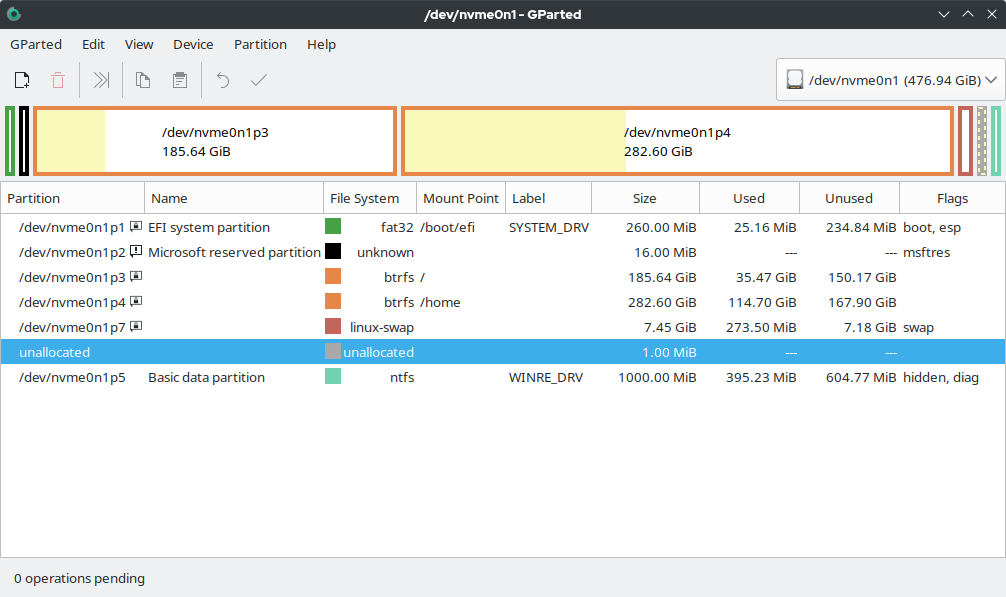
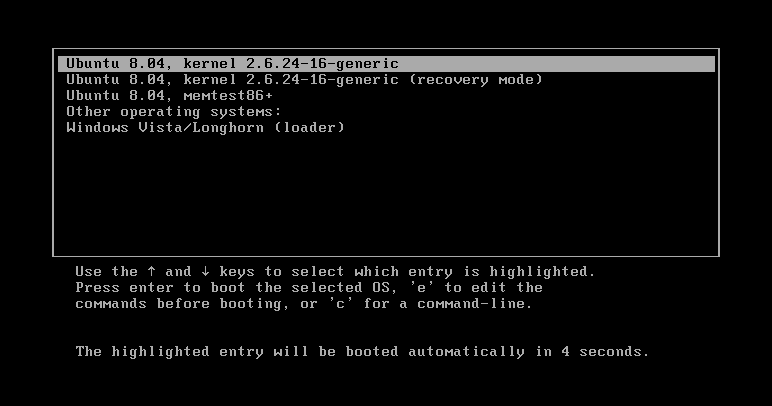
How partitions work and their components
A partition is defined in a partition table that lives on the disk and records start, end, size and a type identifier. When the computer boots, boot loaders and firmware consult this table to find bootable partitions. Key elements include the partition table itself (the schema that describes partitions), the partition entries (with type codes and flags), and the partition content (the file system or raw data stored within). Tools that manipulate partitions update the table and typically rewrite the disk's metadata; careless changes can make data inaccessible.
Partitions are commonly created on physical disks (disk drives) but can also appear inside disk images used by virtual machines. Most operating systems treat a partition as a container: one file system per partition is the usual arrangement, although advanced setups such as RAID arrays, logical volume managers, or spanned file systems can combine or split storage beyond single partitions.
Common partitioning schemes and distinctions
Two widely used partition table formats are MBR (Master Boot Record) and GPT (GUID Partition Table). MBR is older and has limitations such as a small number of primary partitions and size constraints on large disks; GPT is the modern standard used with UEFI firmware, supports many partitions and very large disk sizes. Other distinctions to know:
- Primary vs extended/logical: MBR historically limits primary partitions and uses an extended partition to host logical partitions.
- Partition vs filesystem: a partition is a container; a filesystem (NTFS, ext4, FAT32, etc.) lives inside it.
- Partition vs volume: volumes (Windows dynamic disks) and logical volumes (LVM on Linux) are abstractions that can span multiple partitions or whole disks.
Partitions are also used for special purposes: for example, many UNIX and Linux systems use a dedicated swap partition for virtual memory, though swap files are an alternative. The swap partition acts as overflow storage for memory pages when RAM is insufficient and is one of several reasons systems allocate multiple partitions.
Typical uses, examples and best practices
- OS / data separation: keeping system files and user data on different partitions simplifies backups and system reinstalls.
- Multi‑boot setups: boot loaders can select among several operating systems installed on different partitions.
- Security and mount options: partitions can be mounted read‑only or with options like noexec or nodev to reduce attack surface.
- Performance and alignment: proper partition alignment and choosing appropriate sizes can improve throughput on SSDs and advanced drives.
- Special partitions: UEFI systems require an EFI System Partition; some systems reserve recovery or vendor partitions.
When designing partitions, back up important data before making changes, prefer GPT on modern hardware, and consider flexible alternatives such as LVM or software RAID if you need dynamic resizes or pooling. Common partitioning tools include interactive utilities and installers; system administrators also use command‑line programs to script changes. Finally, remember that partitioning is a logical layout decision — a useful and powerful tool, but one that should be planned carefully to avoid accidental data loss and to match the intended operational and recovery requirements, such as swap use for virtual memory.
Related articles
Author
AlegsaOnline.com Disk partitioning: concepts, schemes, uses and best practices Leandro Alegsa
URL: https://en.alegsaonline.com/art/27681