
Windows Task Manager
Overview of Windows Task Manager: its purpose, key tabs and controls, history and evolution across Windows versions, common uses and differences with related system tools.
The Windows Task Manager is a built-in system utility that helps users monitor and manage running applications, processes and system performance. It provides a combined view of active programs, CPU and memory usage, network activity, logged-in users and services. Task Manager is intended for troubleshooting unresponsive applications, reclaiming system resources and gaining insight into how software consumes hardware.
Image gallery
3 Images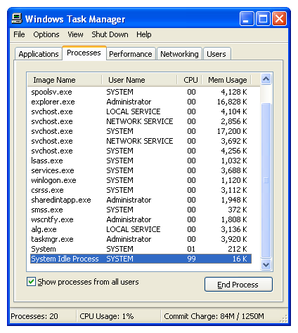

Key components and functions
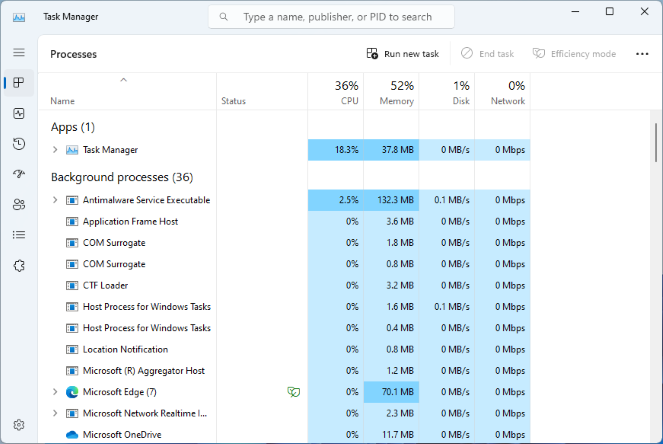
Task Manager is organized into several tabs (the exact names and number vary by Windows release) that expose different categories of information. Typical tabs include Applications or Processes, Performance, Users, and Services. Modern releases add tabs such as Startup and App history. From these views a user can:
- End or force-stop processes to close unresponsive programs.
- Adjust priorities and affinities to influence CPU scheduling for a process.
- View real-time graphs of CPU, memory, disk and network activity.
- Enable or disable startup apps (in newer Windows versions) to control what runs at sign-in.
- Manage services and logged-in sessions without leaving the tool.
How to open and interact
Common ways to launch Task Manager include the keyboard shortcuts Ctrl+Shift+Esc and Ctrl+Alt+Del (which presents it as an option), or by right-clicking the taskbar in many Windows editions. The interface offers both a compact view for simple termination of tasks and an expanded view for detailed process information. Advanced users can right-click process entries to set priority, open the file location, or access additional diagnostic tools.
History and evolution
Task Manager has evolved across Windows releases to reflect changes in system architecture and user needs. Early versions provided basic process listing and shutdown options. Later editions added richer performance graphs, per-application resource use, startup control, and integration with diagnostic utilities like Resource Monitor. Certain features have been specific to particular releases; for example, one older release included direct shutdown, restart and hibernate options from the Task Manager interface.
Common uses and notable distinctions
Everyday uses include closing hung programs, identifying resource-hungry processes, and inspecting network or disk usage spikes. Task Manager is a general-purpose, user-facing tool and differs from command-line utilities and administrative consoles that offer more granular control or scripting capabilities. For deeper analysis administrators often pair it with performance monitors and system logs.
Further information and documentation
For official guidance, troubleshooting steps and version-specific details consult the product documentation and help resources: product overview, user guide, and technical notes. Troubleshooting articles and compatibility details are available at additional resources: support articles, how-to references, and developer documentation.
Related articles
Author
AlegsaOnline.com Windows Task Manager Leandro Alegsa
URL: https://en.alegsaonline.com/art/108538