
Desktop environment (graphical user interface for personal computers)
A desktop environment is the integrated graphical workspace provided by an operating system: windows, icons, panels, menus and utilities that help users launch applications and manage files.
Overview
A desktop environment is the integrated set of graphical components and utilities that creates a cohesive visual workspace on a computer. It provides a consistent way for users to interact with the operating system and applications by combining elements such as window management, icons, panels or taskbars, menus, file managers and basic system utilities. Desktop environments reduce the need to use command‑line tools for common tasks and are available on personal computers, workstations and some embedded systems.
Image gallery
10 Images


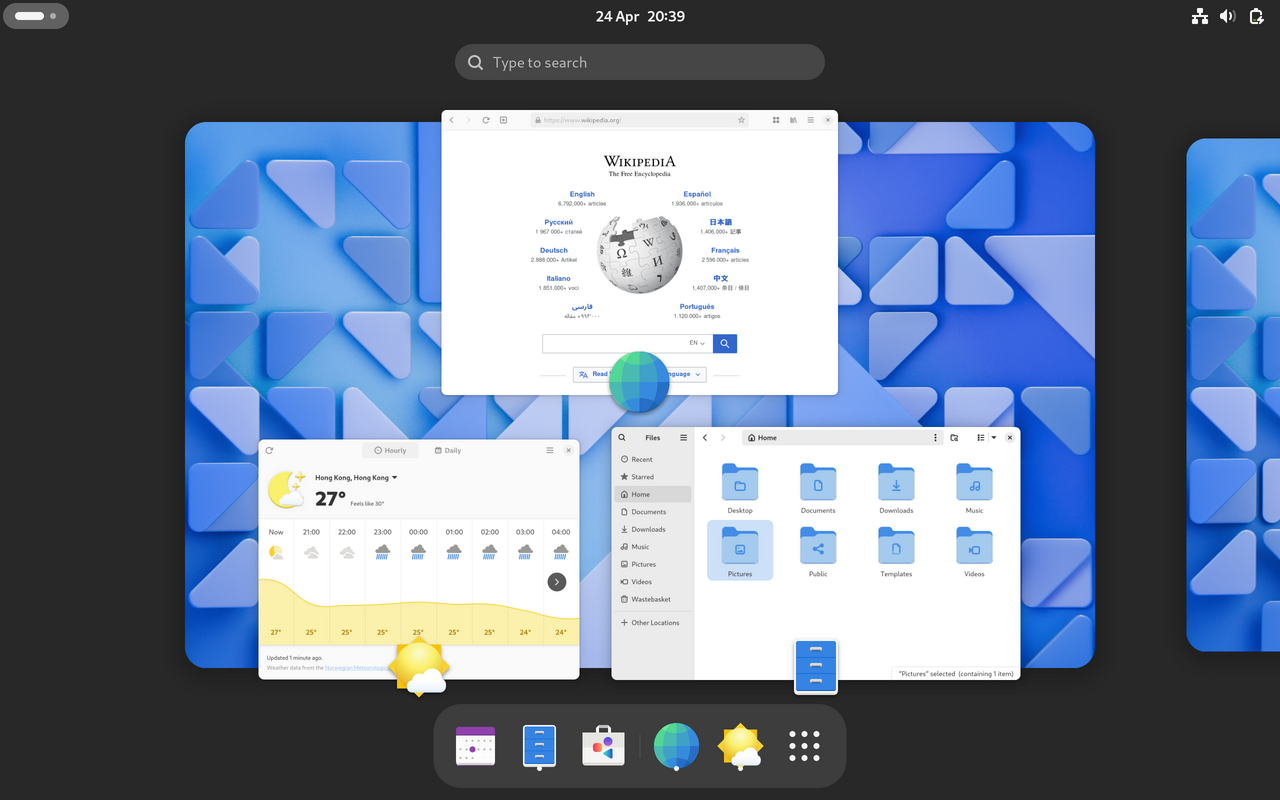

Core components
Although implementations vary, most desktop environments include a predictable set of parts that together form the user experience. Typical components include:
- Window manager: controls placement, decoration and behaviour of application windows, and handles window focus and tiling or compositing effects.
- Panel, taskbar or dock: provides access to running applications, system indicators, notifications and quick launch areas.
- Desktop area and icons: a background surface where users can place shortcuts, files, widgets and launchers.
- Application launcher and menus: allow users to find and start programs and access system settings.
- File manager and utilities: tools to browse storage, manage files and perform routine configuration tasks.
Display servers, toolkits and window managers
On Unix and Unix‑like systems the desktop environment typically runs on top of a display server and uses graphical toolkits. Historical and common components include the X Window System and more recent alternatives such as Wayland. Toolkits such as GTK and Qt are used by application developers to ensure consistent look and behavior within a given environment. Window managers may be integrated into an environment or provided separately, and different combinations allow a range of designs from minimalist to feature rich.
Common implementations
Major desktop environments differ by platform and design goals. Examples include the default Microsoft Windows desktop (with its taskbar and Start menu), Apple macOS (with the Dock, Finder and global menu bar), and multiple projects available for Linux and other Unix‑like systems such as KDE Plasma, GNOME and Xfce. There are also many specialized and historical environments developed for efficiency, accessibility or experimental user interfaces.
Use cases, advantages and trade‑offs
Desktop environments make common tasks more discoverable for non‑technical users and can provide built‑in accessibility, theming, keyboard shortcuts and integration between applications. When choosing an environment, users and administrators often consider responsiveness on older hardware, configurability, appearance and available features. Lightweight environments are preferred on resource‑constrained machines, while full‑featured environments suit users who want advanced effects and deep customization.
Customization and accessibility
Most modern desktop environments support user customization through themes, icon packs, panels, and extensions or applets. Accessibility features such as screen readers, high‑contrast themes, scalable text and keyboard navigation are commonly integrated to assist users with different needs. System settings typically centralize display, input and power options to simplify configuration.
History and ecosystem
Desktop environments evolved from early graphical user interfaces that introduced windows, icons, menus and pointers to make computing more approachable. Over decades, commercial vendors and open‑source communities produced environments oriented toward different audiences and use cases. The modular nature of many Unix‑like systems means multiple desktops can coexist, each with distinct libraries, toolkits and user conventions.
Choosing a desktop environment
Selection depends on hardware, personal workflow and application compatibility. Evaluate resource usage, available applications, the level of customization you want and community support. For systems administration, consistency and ease of remote management may also be factors. Trying live sessions or virtual machines is a practical way to compare alternatives before committing to one.
Related topics and further reading
- Graphical user interfaces and consoles
- Personal computers
- Operating systems
- Computer files
- Folders and directories
- Computer icons
- Start menu and application launchers
- Microsoft Windows
- Apple
- Mac OS X and macOS
- Unix and Unix‑like systems
- X Window System
- KDE
- Xfce
- Sun's Java Desktop System and other historical environments
Questions and answers
Q: What is a desktop environment?
A: A desktop environment is a location on a personal computer that helps the user get around on the computer.
Q: What is a desktop?
A: A desktop is a place in the operating system used for short cuts to computer files and folders on the hard drive.
Q: How are computer icons used on desktops?
A: Computer icons (small pictures) are used to represent files/folders. Clicking these icons will open or start a folder or program.
Q: What is the main screen on a computer?
A: Usually, the desktop is the main screen on the computer.
Q: What are some common desktop environments on personal computers?
A: The most common desktop environment on personal computers is the one given by Microsoft Windows; another common environment is the one given by Apple Mac OS X.
Q: What are some mostly-used desktop environments for Unix-like operating systems using the X Window System?
A: Other mostly-used desktop environments for Unix-like operating systems using the X Window System are KDE, GNOME, Xfce.
Q: What are some other desktop environments?
A: Other desktop environments include Aston, EDE, GEM, IRIX Interactive Desktop, Sun's Java Desktop System, Mezzo, Project Looking Glass, ROX Desktop, UDE, Xito, XFast.
Related articles
Author
AlegsaOnline.com Desktop environment (graphical user interface for personal computers) Leandro Alegsa
URL: https://en.alegsaonline.com/art/26854