
Computer icon
A computer icon is a small graphical symbol used in user interfaces to represent programs, files, folders, actions or status; formats, design principles and uses have evolved for desktops, web and mobile.
A computer icon is a compact graphical symbol used in graphical user interfaces to represent an application, a data item, a location, or a command. Icons act as visual metaphors that help users recognize and act on objects without reading long labels. Typical examples include an image for an application launcher, a document thumbnail, a folder symbol and buttons for actions such as print, save or delete. An icon often stands for a program, a file, or a folder.
Image gallery
1 Image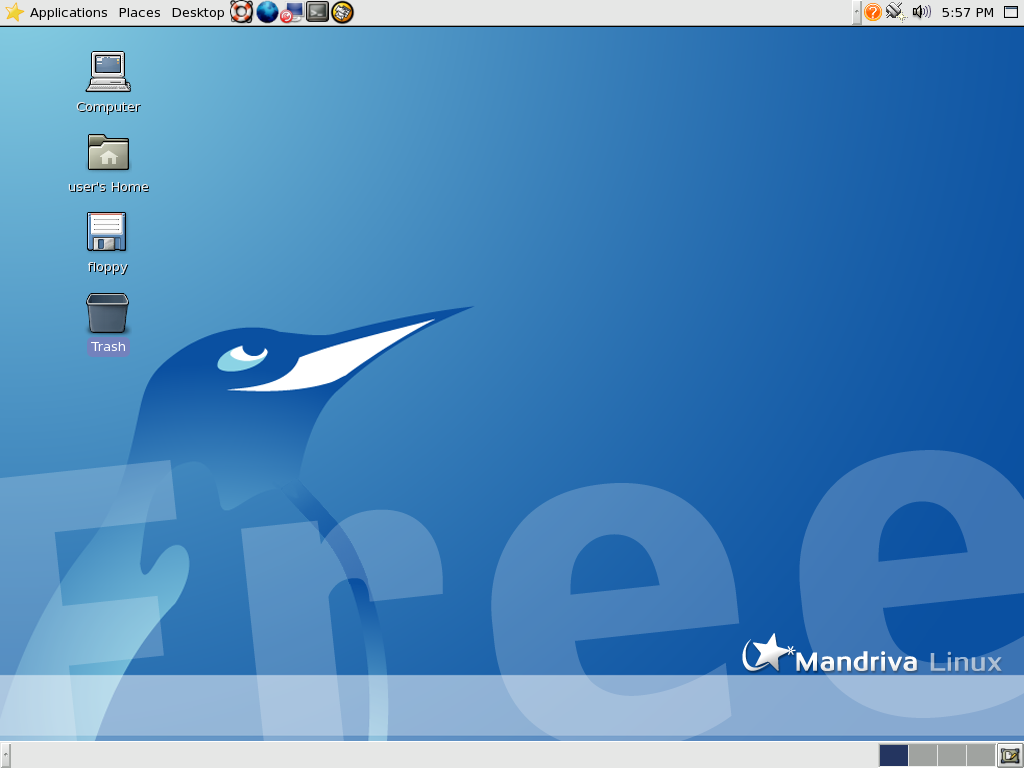
Characteristics and formats
Icons can be raster or vector graphics. Raster icons use pixel-based formats such as PNG, GIF or platform-specific containers (.ico on Windows, .icns on macOS) and are often provided at several sizes to match screen resolution. Vector formats such as SVG scale cleanly and are increasingly used for interfaces that must adapt to different densities. Designers consider legibility at small sizes, silhouette clarity, contrast for accessibility and consistent line weight across a set.
Types and contexts of use
- Application icons: represent installed software, shortcuts or launchers on desktops and mobile homescreens.
- File and folder icons: indicate content type or status (for example, a document type or a synced folder).
- Toolbar and action icons: small glyphs within programs that trigger commands or reveal menus.
- System and status icons: indicate battery level, network state, notifications and other ongoing conditions.
- Web icons: favicons for browser tabs and touch icons for mobile homescreens.
On modern platforms, icons may be adaptive or layered so their shape and treatment match a device’s visual language. Web applications commonly supply multiple icon sizes and formats so browsers and mobile systems can choose the appropriate asset.
History and design principles
Graphical icons became widespread with early graphical user interfaces developed in research labs and later in commercial personal computers. The desktop metaphor and windowed environments popularized icon-based navigation. Effective icon design emphasizes simplicity, recognizability, cultural neutrality where possible, and consistency with a system’s overall visual language. Designers often test icons at the smallest intended size to ensure details remain clear and avoid visual noise.
Creation, customization and accessibility
Icons are created with vector illustration tools or exported as raster images from design applications. Many operating systems and launchers allow users to replace or resize icons for personalization. Accessibility practices include providing descriptive labels or tooltips, ensuring sufficient color contrast, and exposing semantic names to assistive technologies (for example via ARIA attributes or accessibility APIs) so icons are usable by people with visual impairments.
Packaging, standards and distribution
Platforms and ecosystems offer conventions for packaging icons: multi-resolution containers, naming specifications for icon themes, and metadata to indicate purpose (maskable, monochrome, touch). Open-source desktop environments use icon themes with shared naming schemes so different applications present consistent imagery. Web developers generate favicons and manifest entries to support different devices and splash screens.
Legal and practical notes
Icons can be subject to copyright or trademark rules; many designers use licensed icon sets or create original artwork. When reusing icons, check the license terms and attribution requirements. For developers, following platform guidelines for style, size and spacing produces more polished results and reduces confusion for users.
Distinctions and future trends
Icons differ from related elements: cursors indicate pointer state, emojis convey emotion or inline meaning, and logos identify brands. As displays and interaction models evolve, icons adapt: higher-resolution assets for dense displays, motion and micro-interactions for feedback, and adaptive systems that harmonize icons across devices while preserving the core goal of quick, intuitive identification.
For further reading, see platform documentation on application icons and icon design, or resources about accessible interface patterns and web manifest guidelines for icons (application guidance, file handling, folder conventions).
Questions and answers
Q: What is an icon in computing?
A: An icon is a picture that represents a computer program, file, folder, or an action for a program to perform.
Q: What is the usual size of an icon in computing?
A: Icons are usually small pictures, but their size can be changed by the user.
Q: What does an icon represent in computing?
A: An icon represents a computer program, file, folder, or an action for a program to perform.
Q: Can the size of an icon be changed?
A: Yes, the size of an icon can be changed by the user.
Q: How is an icon defined in computing?
A: An icon is a picture that stands for a computer program, file, folder, or an action for a program to perform.
Q: What are the different types of things an icon can represent in computing?
A: An icon can represent a computer program, file, folder, or an action for a program to perform.
Q: What is the importance of an icon in computing?
A: An icon provides a visual representation of different programs, files, folders, and actions, making it easier for users to navigate and use their computer systems.
Related articles
Author
AlegsaOnline.com Computer icon Leandro Alegsa
URL: https://en.alegsaonline.com/art/22316